
The Load Data from Template dialog allows bulk changes to be made by loading templates to selected locations in a model in a controlled way.
Access the Load Data from Template from:
Quick view of the Load data from template tool in action
See also the Glazing and openings tutorial
You can select one or more data sources from the following template libraries:
When at site level only one template can be loaded:
When you select one of the above template libraries as a source of data you must also select the template from which to load:
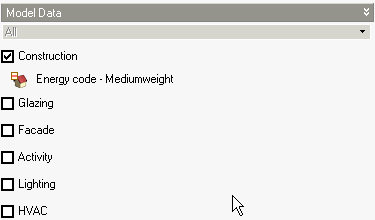
In the above case, data will be loaded from the Energy code - Mediumweight Construction template to whichever objects are selected on the Target tab.
On the Search tab you can select how you want to set data and, where appropriate, which model objects to load to.
The Edit > Reload templates menu command provides a quick way to reload template data for the current building and all its blocks, zones, surfaces and openings. Data is only reloaded if the template selection is non-default. If the template inherits from the hierarchical level above, data is not loaded. This ensures that any model data that was manually overriden reverts back to template settings. After running this command you should not see any model data shown in red bold.
The command opens the Load data from template dialog with the option 2-Reload templates selected and all model data tabs selected for updating. You can modify these settings, for example if you only wish to reload data on certain model data tabs.
This option can be conveniently accessed from the Edit menu.
Tip: Reload templates can be run after overriding attribute data previously loaded from template to ensure that the latest template settings are used.
The Search and Replace option allows you to search the model for objects having particular browse item selections and replace those settings with data from a template that you select. The tool works differently depending on whether the Load data from template dialog was opened from the toolbar or from the right-click context menu.
Tip: The Model Data Grid View includes filter and bulk edit tools that can be used to bulk edit models, and in most case, that is the preferred way to go about it.
If you wish to search for particular browse option settings and replace them with alternative settings from a specific template, use the context menu by right-clicking on the browse item of interest and selecting the Search and replace ... option.

In the example above, the user right-clicked on the Window shading type browse item. Then, selecting the Search and replace window shade option opens the Load Data from Template dialog with the 3-Search & replace method selected. By default the search term is the currently selected object in the underlying browse item. In the above case, the currently selected Window shading type.
You can select the other objects that will be included in the search and replace operation using the checkboxes against the TreeView list under the Search in header below.
On the Replace With tab you can select the template(s) that will be used as a source for the replace data. Since the search and replace operation only applies to a single item when the dialog is accessed from the context menu, there is no point in selecting anything other than the Glazing template in this example as this is the source of the required Window shading type data.
Alternatively, you can select the All option on the Replace With tab and select any other templates that should be used as a source. In this case, any selected templates will be fully loaded to any model objects (blocks, zones, surfaces and windows) matching the search term. In our example, we will only select Glazing template.
Pressing the OK button causes the Window shading type setting from the Glazing template selected on the Replace With tab to be loaded to all model objects selected on the Search tab.
In cases where you wish to load data from multiple templates for each selected object that meets your criteria, you can open the Load Data from Template dialog by clicking on the toolbar icon or from the Edit menu and set the Method on the Search tab to 3-Search and Replace. When search and replace is accessed in this way, each template is handled individually. For example, if Activity template search is active (Activity is selected on the Search For tab) and, during the search processing a match is made with the selected Activity template on the Search For tab, then the Activity template selected on the Replace With tab will be used to replace it, regardless of any settings for Construction, Glazing, Facade templates etc.
In other words, for each object selected on the Search tab, the tool checks whether the Activity checkbox on the Search For tab is checked . If it is and the selected Activity below that is selected in model data for this object, then the selected activity on the Replace With tab is loaded to that object. Then a similar check is made for Construction, Glazing, Facade, Lighting and HVAC templates. Then the operation moves on the next object selected on the Search tab until all objects have been processed.
On the Search tab:
Select the 3-Search and Replace Method.
Check the checkboxes to define the model data objects (blocks, zones, surfaces and windows) you wish to search.
On the Search For tab:
Check the checkboxes to enable you to select the items you wish to search for.
For example, in the screenshot below, the user wishes to load a new construction template for model objects that have the "TSBC_construction_template" selected. They also wish to load a new Glazing template for model objects that have the "TBSC_glazing_template" selected. And load a new Facade template for model objects that have the "No glazing" Facade template selected.
On the Replace With tab:
Note that the All model data setting is selected at the top of the dialog and greyed out, indicating that the process will replace all of the selected templates, as opposed to the case where Search and replace is accessed from the context menu when it applies to only to the selected attribute.
Check the checkbox is associated with the various template types to be loaded, and,
Select the required templates to be loaded.
When the OK button is pressed, for each model object selected on the Search tab, DesignBuilder checks to see whether all of the search conditions are satisfied as defined by selections on the Search For tab, and if they are, it loads all of the settings requested on the Replace With tab.
When on the Search tab, selection tools on the Info panel enable you to control the selection of building objects:
Tip: The Filter selection tool provides a convenient way to select multiple objects such as zones, surfaces and windows which have properties in common.
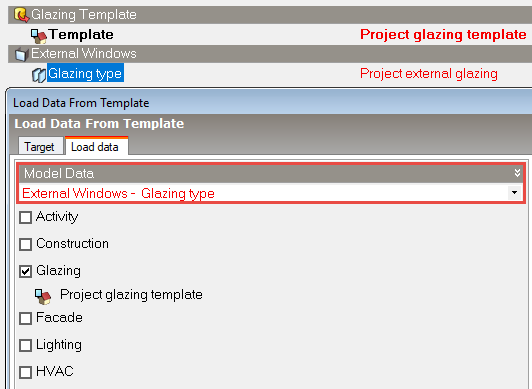
When opening the dialog by right-clicking on a Model data item and selecting the Load data from template menu context menu option, by default any template data loaded applies only to the selected model data attribute, in the case below, the external glazing type. This behaviour can be changed by selecting the All Model data drop list option (screenshot below). In this case, when the All option is selected, data is loaded to all attributes on the tab in the same way as if the dialog had been opened from the Toolbar.
 If you are using the 2-Normalised power density Lighting gain units model option
When you load lighting data from template you should bear in mind that DesignBuilder sets the lighting output from the lights based on:
If you are using the 3-Absolute zone power Lighting gain units model option
If you have many types of activity in the building you can load lighting data for each zone taking into account the required illuminance level in the zone by selecting the appropriate zones in the Target tab.
