Quick overview of the navigation tools in action
There are various ways of navigating (moving around) DesignBuilder models:
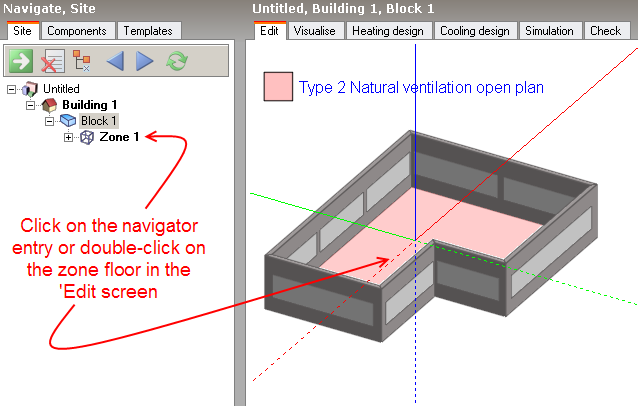
The Figure below shows how to either click on the Navigator entry or double-click on the Edit Screen to go to 'Zone 1' from 'Block 1'.
The Navigator panel in the top left of the screen includes a full list of the model hierarchy, starting at Site Level and going down to Building, Block, Zone, Surface, Opening Levels. Also included are Component and Assembly Blocks and the HVAC hierarchy when using Detailed HVAC.
The following objects can be renamed by clicking on the currently selected the Navigator Treeview node:
Site
Building
Block
Zone
Component block
Assembly instance
Solar panel
High-level HVAC system components (e.g. Loops, Setpoint Managers, Zone groups)
The following objects cannot be renamed through the Navigator TreeView:
Surface
Opening (Window, Door, Vent, Subsurface, Hole, CFD boundary condition)
HVAC system sub-components which only inherit their names from the level above.
Note: The areas quoted in Surface Navigator nodes are gross areas, i.e. they include the areas of any openings they may contain.
Note: The level below Surface in the Navigator includes any openings that are placed on the surface as well as the breakdown of 1 or more adjacencies to other zones or the outside. For example, a floor surface may include two adjacencies: an external floor and an internal floor, as shown in the screenshot below.
See also HVAC Component Hierarchy and Navigation.