Data tab on Model Options dialog.
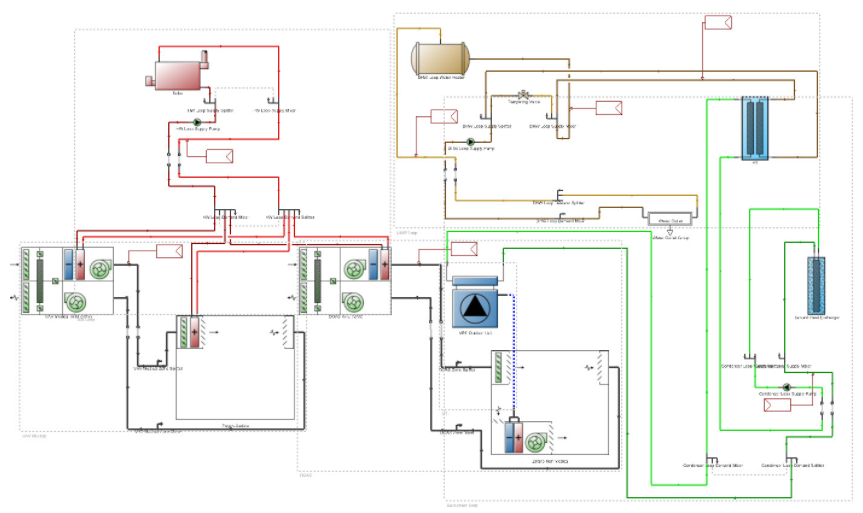
HVAC systems can be defined in DesignBuilder using a choice of 2 different levels of detail:
See also the Simple HVAC Data tutorial
When using Detailed HVAC, this option controls how zone temperature and humidity setpoints as well as ventilation requirement and hot water consumption data is defined. Two options are available:
The tables below show specifically where each item of Activity-related HVAC data is entered for the 2 options.
|
Activity Tab - Setpoints, Fresh Air Rates, DHW Consumption |
HVAC Tab - Setpoint timing / Operation |
| Heating operation schedule | |
| Cooling setpoint and setback temperatures | Cooling operation schedule |
| Humidification setpoint | DHW operation schedule |
| Dehumidification setpoint |
|
| Minimum fresh air per person | |
| Minimum fresh air per floor area |
|
| DHW consumption rate per floor area |
| HVAC Zone Dialog | Water Outlet Dialog | Heated Floor Dialog | Chilled Ceiling Dialog |
| Flow rate fraction schedule | Cooling setpoint schedules | ||
| Peak flow rate | |||
|
|
|||
Note: The tables above summarise the location of the various setpoints, fresh air, schedules etc for the 2 Detailed HVAC activity data options. For heating and cooling design calculations the humidity and temperature setpoints and ventilation requirement data comes from the Activity and HVAC tabs as described in the 1-Simple HVAC table, regardless of the Detailed HVAC Activity Data setting.
This option is provided as a quick easy way to run simulations without the HVAC system operating without the need to remove the system from the model.
When using Simple HVAC, you can choose whether to specify some basic details on the system. If you activate this option then you will be able to specify:
Mechanical ventilation method.
This option might be switched off for early design stage architectural use to simplify the HVAC data entry. If you switch this option off then any heating or cooling is assumed to be entirely convective.
This option is additionally available when using Detailed HVAC, in which case it has a similar effect to that for Simple HVAC, but in this case it applies to data on the HVAC tab that is only used for Heating and Cooling design calculations. When using Detailed HVAC you should only uncheck this option if you do not plan to use Heating and Cooling design calculations.
When using Simple HVAC and you choose to specify Simple HVAC details (above), there are 3 options for modelling fans, pumps and other auxiliary energy associated with the HVAC system:
This setting defines how mechanical ventilation is treated for Simple HVAC Simulation and Cooling design calculations. The options are:
Note: Simple HVAC combined with the 1-Room ventilation method and Calculated natural ventilation means you cannot model Mechanical ventilation. If you wish to combine Calculated natural ventilation and Mechanical ventilation in a Simple HVAC simulation, you should use the 2-Ideal loads method.
When using Simple HVAC, DesignBuilder can automatically calculate heating and cooling capacity in each zone based on the output from the Heating and Cooling design calculations. The HVAC sizing model option provides control over how heating and cooling capacities are defined. Select from:
These HVAC sizing options are described below.
Note: In Heating and Cooling design calculations, heating and cooling loads are always met and so this option does not apply - it only applies to Simulations.
When this option is set, HVAC equipment is modelled as having unlimited capacity allowing it to meet any heating or cooling demand ensuring that setpoint temperatures are always maintained. This option can cause extremely large peaks in heating and cooling delivery to zones and will tend to significantly over-predict heating and cooling energy and under predict discomfort hours.
Heating and cooling capacity Model data must be entered manually on the HVAC Model data tab. Choose this option if you have specific heating and cooling capacity data you wish to use and do not want it to be overwritten when model data or model options change.
Autosize is the default option where heating and cooling capacities are always calculated prior to each simulation and the heating and cooling capacity model data is not displayed. When using Simple HVAC the heating and cooling design calculations will be run as required before the simulation (within the same EnergyPlus run) to calculate the required sizes.
The autosizing calculation method is defined through the Simple HVAC autosizing method model option described below.
In this case heating and cooling capacities are autosized and loaded into model data following DesignBuilder Heating and Cooling design simulations. If heating/cooling capacity model data is not present before a simulation, it is generated by automatically by carrying out heating and cooling design calculations and is written into the HVAC model data.
You should be aware that when using the 4-Autosize when not set option, the heating/cooling zone capacity model data is not treated the same way as other calculated results. In general, calculated results are deleted when any edit is made to the building model, but this is not the case for zone capacity model data. It is only updated when:
If you always want the heating capacity to be kept up-to-date with your model and do not have any specific capacity sizes you wish to use, you should normally use the default 3-Autosize option. This will cause EnergyPlus autosizing to be carried out prior to every simulation.
Tip: When using 4-Autosize when not set, you can manually change heating and cooling capacity settings on the HVAC tab if you wish, but you should bear in mind that, if Model options or model geometry change, all heating and cooling capacities are reset to zero. To avoid this happening, once you have established the required heating and cooling capacity settings, set HVAC Sizing to 2-Manual.
When using Simple HVAC with the 3-Autosize option, there are 2 ways to carry out HVAC autosizing calculations:
The 1-EnergyPlus option is recommended as the fastest way to carry out autosizing calculations. With this option, simulation times tend to be much shorter, particularly for short simulation periods. However, one advantage of the 2-DesignBuilder alternative option is that it provides the results of the 2 autosizing simulations on the Heating design and Cooling design screens. These results will be consistent with the plant sizes used in the simulation.
With the 1-EnergyPlus option the autosizing simulation outputs are generated in the EnergyPlus autosizing spreadsheet output files:
Some minor differences in zone sizing results between the 2 methods are likely as explained below.
 Differences between 1-EnergyPlus and 2-DesignBuilder Autosizing methods
In general the autosized heating and cooling sizes between the 2 methods should be close, however because the simulation methods are different some differences may be observed due to one or more of: